
a playful visual story
Bigfoot Video Generator
Build a fictional Bigfoot scene
History
Loading history…
Your questions, answered
What is Bigfoot Video Generator?
Generate an imagined Bigfoot video from a written scene or an optional image in the matching photo mode. Try it for a trail-vlog costume test, with your own setting and a clear visual intention.
How do I start?
Choose Text to Video or Image to Video, prepare the matching inputs and describe one useful direction. Check the settings and quote, then submit and review the result in History.
Can I try it for free?
Check your current account credits and the selected model’s access conditions. When the available balance covers the quoted job, you can generate without buying more credits.
What do I upload?
Text to Video starts with a description and no uploaded media. In Image to Video, use one suitable woodland or creature scene image.
How much does it cost?
Read the live credit quote for the selected model and settings before submitting your fictional forest encounter. Preparing inputs or editing a description does not start a generation.
When is the result ready?
Follow the submitted job’s estimate and progress. The model, settings and queue affect waiting; History keeps the completed clip available for review and download.
Generate an imagined Bigfoot video from a written scene or an optional image in the matching photo mode. Choose what the audience sees first, where the creature appears and how the shot ends. On Mea8, approach it as a playful visual story: a distinctive expression and a memorable setting. Look for the idea you would enjoy sharing, then refine the detail that makes it yours.
Create a Bigfoot videoHow a fictional Bigfoot clip comes together
1. Start from a prompt or reference
Prepare a clear subject and a focused direction before submitting a generation. Describe one wardrobe change and one scene change per variation so results stay comparable.
2. Set the creative direction
Use the editable prompt and available model controls to push one variation at a time. Change a single element, such as a raincoat instead of a fur pelt or a muddy trail instead of a sunlit clearing. Small edits make comparisons readable and keep each clip distinct.
3. Review the quote and result
The live credit quote appears before you commit, so you know the cost. Sign in, start a generation job, and find finished clips in History. Watch each one for framing, material behaviour, and scene continuity, then refine the prompt for the next variation.
Explore published creative references
Study the framing, lighting and styling, then open a case to read its original prompt. These library references are starting points for your own direction.
Framing reference
View case and prompt
Lighting reference
View case and prompt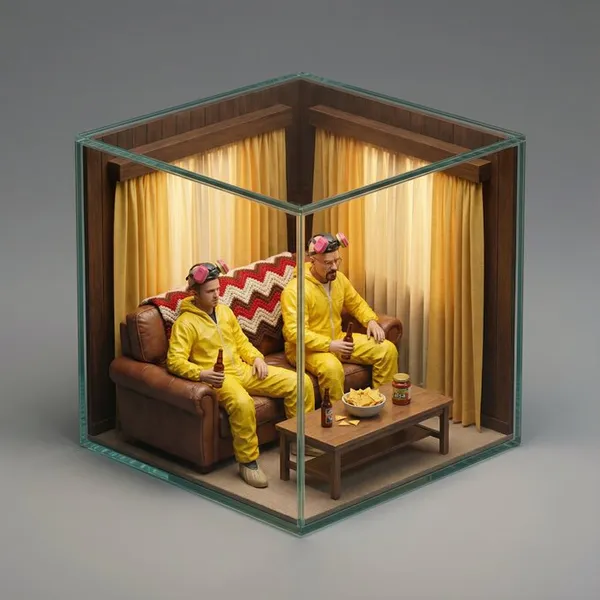
Styling reference
View case and prompt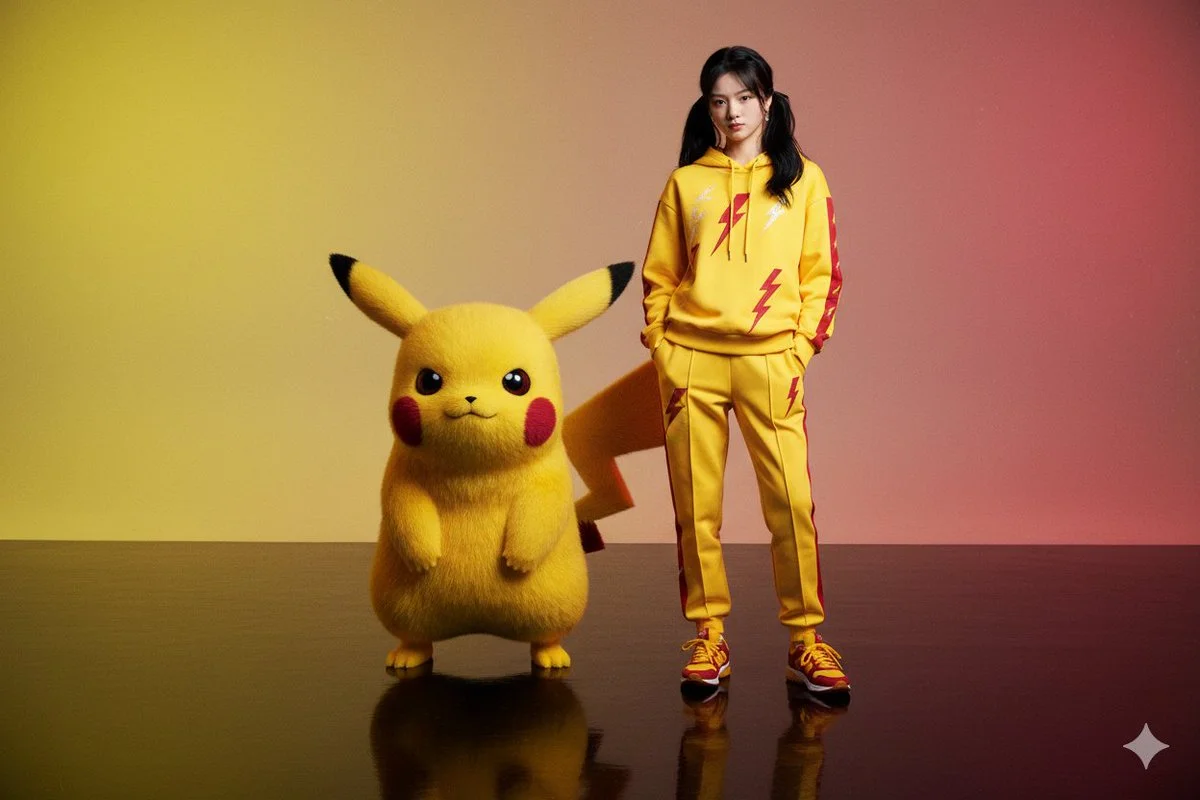
Composition reference
View case and promptBefore you generate
Write the scene in plain language: who or what appears, the setting, and the mood. Or upload an image to steer the look. Mention wardrobe pieces, fabric or fur texture, props, time of day, and camera distance. Keep the subject clearly fictional and avoid claiming real evidence. When a supporting model offers Start/End Frame mode, provide two endpoint images for the beginning and end.
- Describe one wardrobe change and one scene change per variation so results stay comparable.
- Name materials explicitly, such as waxed cotton, matted fur, or wet nylon, because texture drives the look.
- Check the live credit quote before starting a job, and keep prompts saved so you can revisit them in History.
- Choose the mode before preparing the fictional forest encounter; keep uploaded media in the photo mode and describe a new subject directly in the text mode.
What the output gives you
Variations built around choices
Each clip is a deliberate variation rather than a random draw. Swap wardrobe, change surface materials, or move the scene from dense forest to a roadside trailhead. Because the prompt stays editable, you can compare one change at a time and build a small set of looks that belong together.
Prompt or image reference input
Type a description from scratch, or upload a photo as a visual reference for the model. A reference helps when you want a specific silhouette, colour palette, or costume feel. The text prompt still carries the scene and action, so describe movement and setting even when an image is attached.
A readable action and a chosen shot length
Choose among the duration, aspect-ratio and audio options actually shown for your selected model. Describe one creature action and a camera position that lets the audience see it. After generation, watch the full clip and review motion, pacing and any sound together. The scene is fictional entertainment, so frame it as an imagined encounter when you share it.
Ways creators use it
A trail-vlog costume test
A hiker-style vlog where the fictional subject wears a bright rain shell and carries a scratched thermos. Compare how the jacket reads against mossy trunks versus grey gravel, then pick the version that sells the joke.
A comedy encounter
Stage a deadpan forest meeting where the creature fumbles with a map and a paper coffee cup. Wardrobe and props carry the comedy, so try a knitted hat, then a satchel, and keep the camera language calm and documentary-like.
A nature-documentary mood piece
Use slow framing, mist, and long grass to suggest a serious wildlife film about something that does not exist. Material choices matter here: wet fur, canvas, and weathered boots read differently from clean synthetic fabric.
Bigfoot Video Generator questions
What does the Bigfoot Video Generator actually produce?
It produces fictional video clips of a Bigfoot-style subject from your text prompt or optional reference image. The output is entertainment, not evidence, and it does not assert that a real creature exists anywhere.
Can I upload an image as a reference?
Yes. Photo upload is available and works alongside the editable prompt. The image can guide look and silhouette, while the prompt describes the setting, wardrobe, materials, and action you want the fictional scene to show.
Which creative choices can I direct?
Focus on wardrobe, materials, and scene. Specify clothing, fabric texture, props, weather, terrain, and camera distance. The available model controls and prompt edits let you test one variation at a time rather than changing everything at once.
Can I choose clip length or include audio?
Use the duration and audio choices displayed for the selected model. Those options vary by model, so check them before submitting. Watch the complete result to decide whether the action and any sound work together; adjust the scene direction for a new version if needed.
Should I choose Text to Video or Image to Video?
Choose Text to Video for a new fictional forest encounter made entirely from your description; it uses no uploaded reference. Choose Image to Video when one photo should guide the person, subject or composition. Select the mode first so the visible inputs match your intention.
Can I use my available credits without buying a plan?
You can prepare the fictional forest encounter before submitting. To generate, check your signed-in account’s current credits and the selected model’s access conditions. If the available balance covers the displayed quote, you can proceed without buying more; no fixed free quota is promised.
What does a fictional forest encounter generation cost?
Your fictional forest encounter has a live credit quote based on the model and settings you choose. Check it before submitting. Editing the description or reviewing an idea does not start a job; submitting another generation creates a separately quoted attempt.
How long should I wait, and where is the result?
Use the estimate and progress shown for the submitted fictional forest encounter job. Model choice, settings and queue conditions affect waiting. Check History for the completed clip, and keep the existing task in progress instead of resubmitting the same request while you wait.
Sketch your first fictional variation
Look for the idea you would enjoy sharing, then refine the detail that makes it yours. Prepare the fictional forest encounter, read the current quote and submit when the direction is clear.
Create a Bigfoot videoKeep creating with Mea8
mea8.com · Updated
What's new on this page
- — Prepared this guide with current input instructions, published case references, working prompt links and related tools.