
Your photo, your announcement
Photo Flyer Maker
Turn one photo into a clear announcement
History
Make a photo flyer around an image you already have. Upload a product, portrait or venue photo in Image to Image, describe the announcement and generate a new composition. Start without a photo in Text to Image when you want to explore a fresh visual idea.
Make a photo flyerStart with a useful reference
Choose a sharp photograph with one obvious subject and enough room around its edges. A clean product view, a naturally lit portrait or a recognizable venue gives the composition a useful anchor.
Explore published creative references
Study the framing, lighting and styling, then open a case to read its original prompt. These library references are starting points for your own direction.
Framing reference
View case and prompt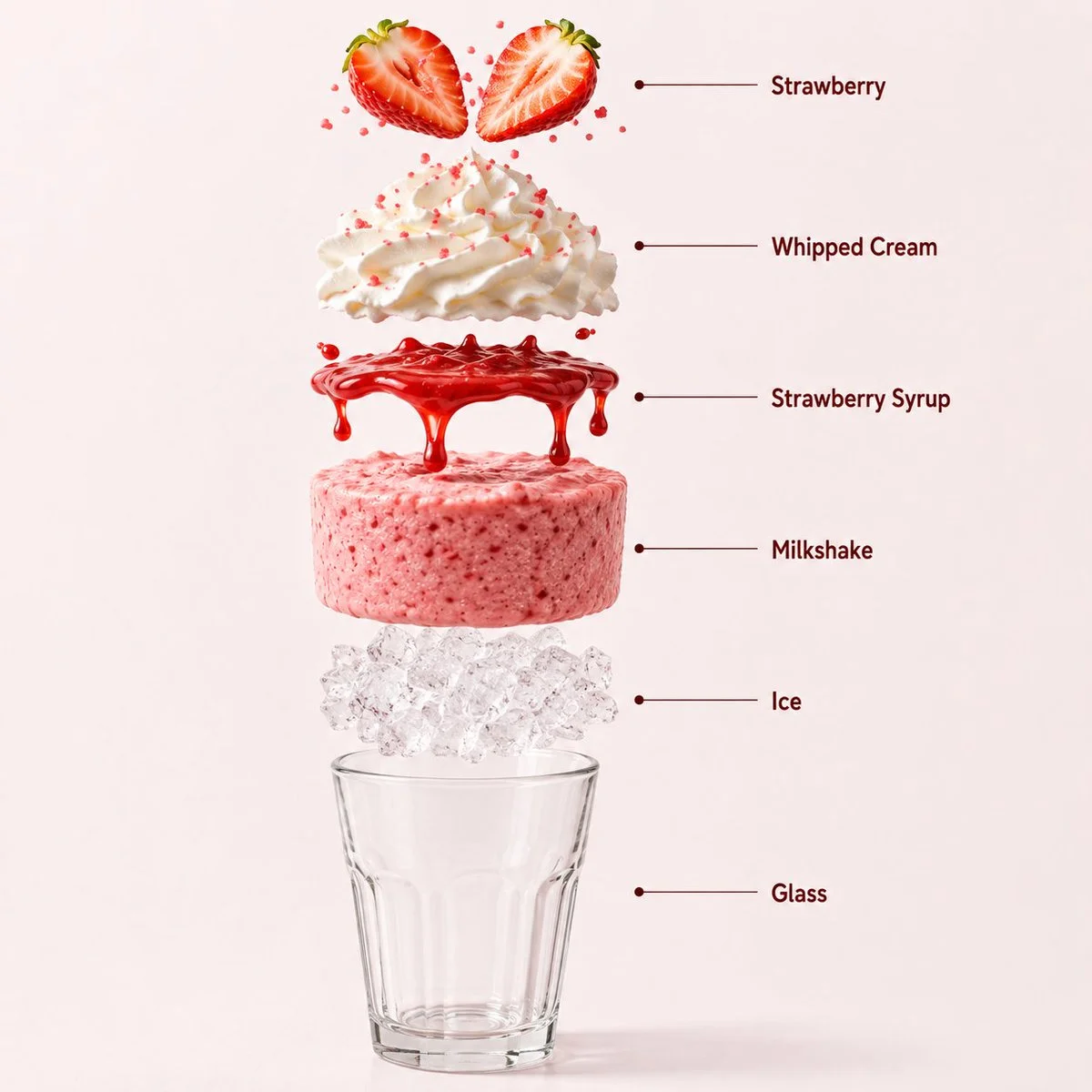
Lighting reference
View case and prompt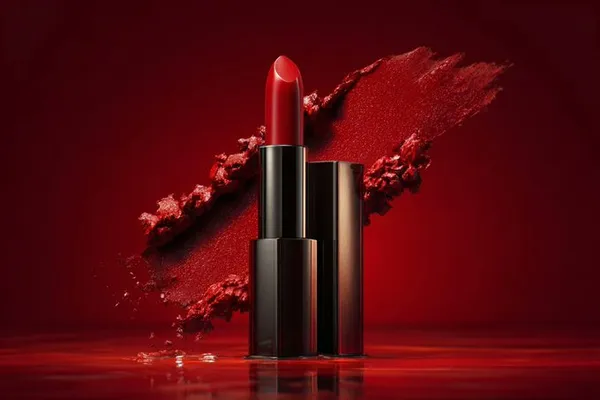
Styling reference
View case and prompt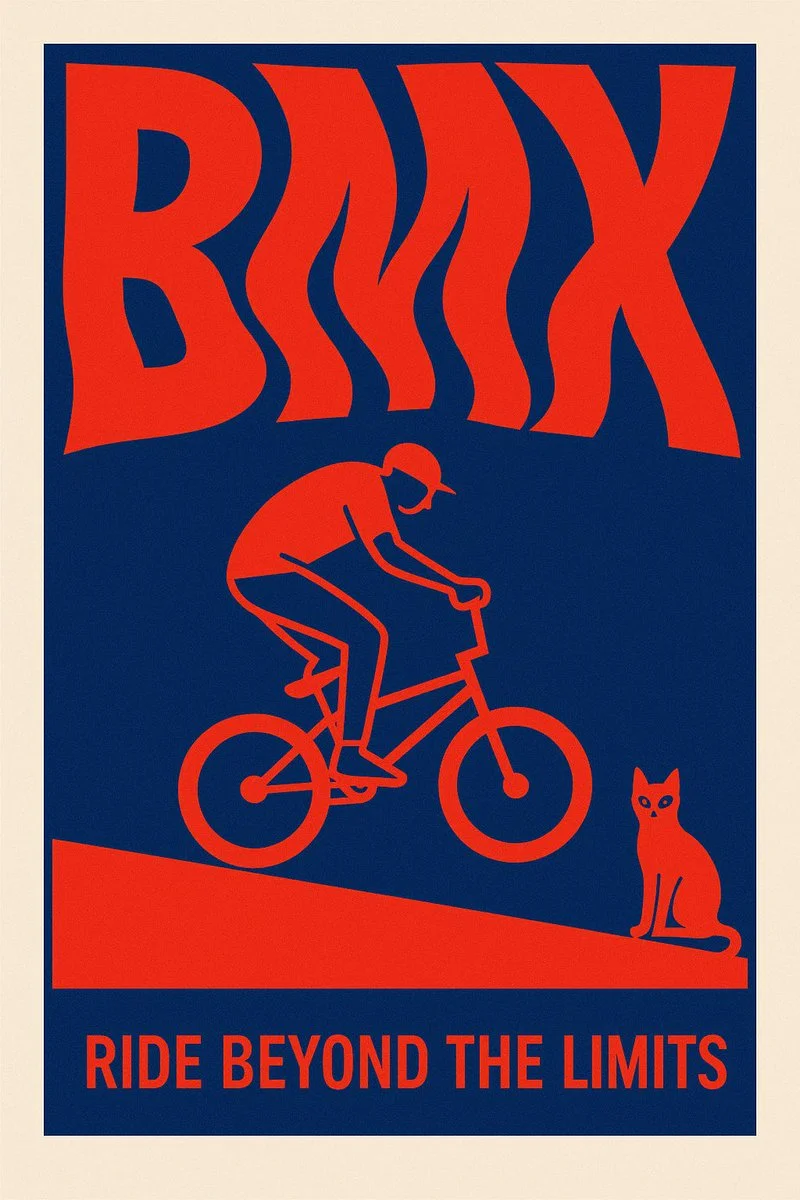
Composition reference
View case and promptHow to make your flyer
Choose the photo worth keeping
Upload one reference in Image to Image. Describe the object, person or location that should remain recognizable. In Text to Image, describe the subject instead; no reference photo is needed.
Write the announcement
Replace the sample event, time and place in the prompt. Put your exact headline in quotation marks. Ask for one main image and a short supporting message rather than a page full of small text.
Generate and inspect
Select an available model and ratio, check its live credit quote, then generate. Compare the result with your original photo and read every line before downloading.
Check the details before downloading
Check that the main subject remains recognizable, the headline is readable and the smallest text survives a phone-sized preview. AI may redraw details in the photo or misspell words, so keep the original and review the result before sharing.
Choose the right announcement
Local product launch
Give a handmade item a simple visual setting and one purchase or event message.
Venue announcement
Use a recognizable shopfront or room to help visitors understand where to go.
Personal service promotion
Build a concise introduction around a portrait and the service you actually offer.
Questions before your first flyer
Can I use my own photo?
Yes. Choose Image to Image and a model that supports reference images, then upload your photograph. The result is a new generated composition; compare important details with the original.
Can I move the text after generation?
This tool produces an image rather than a layered design file. Revise the prompt for another version, or use a separate design editor when you need exact text placement.
Is there a free way to try it?
Any available free credits or promotions appear in your account. Generation uses the live credit quote for the selected model and settings; check that quote before submitting.
How long does a flyer take?
Completion depends on the selected model, output settings and queue. Follow the existing task in History rather than submitting the same request repeatedly.
Which size should I choose?
Choose from the ratios offered by your selected model. Keep the headline and essential details away from the edges, then check the downloaded dimensions for the place you plan to share it.
Keep creating with Mea8
mea8.com · Updated
What's new on this page
- — Prepared this guide with current input instructions, published case references, working prompt links and related tools.